Docs directory
Positions & One-Click Close
Check positions and close them without opening the terminal.
The Positions tab lets you review and manage open positions without opening the MT5/MT4 main window. All trading operations are submitted by your local terminal to your own broker - the app never holds your funds.
On this page
Open the Positions tab
Hover the tray icon to pop up the panel and switch to the "Positions" tab to see every open position on the current account.
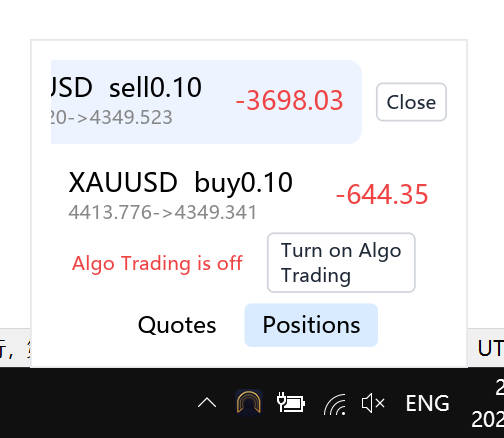
Reading an order card
- Symbol and direction (buy / sell)
- Lot size, open price → current price
- Open time
- Current P&L (color-coded)
Close a position (two-step confirm)
The close command is submitted by your local MT5/MT4 terminal to your own broker. To prevent accidental taps, closing uses a two-step confirmation; on MT4, "AutoTrading" must be enabled first.
- 1 Click the order card you want to close
- 2 Click "Close"
- 3 Click "Confirm"
Algo-trading status
A status line at the bottom of the Positions tab shows the algo-trading state. When it's off, tapping the confirm button shakes as a hint. Turning it on matches the terminal: "Algo Trading" on MT5, "AutoTrading" on MT4 (Ctrl+E for both).
If a close fails
The failure reason shows in red in a fixed line above the order list (it doesn't scroll away). Common causes:
- The market is closed
- "AutoTrading" is off on MT4
- Fast-moving prices - the broker rejected the quote (retry)
Related
Not installed yet?
Download Camovia Tray free — 2-day trial, subscriptions from $2.49/month.