Docs directory
Quick Start
From install to your first hover quote in about three minutes.
Follow the steps below to go from installation to your first live quotes. Every step comes with a screenshot.
On this page
Step 1: Install the app
- Open the download page on our website and click "Get it from Microsoft Store".
- You can also search for Camovia Tray directly in the Microsoft Store.
- Once installed, the app starts automatically and stays in the system tray (bottom-right corner of the taskbar) without taking up taskbar space.
Step 2: Open Settings
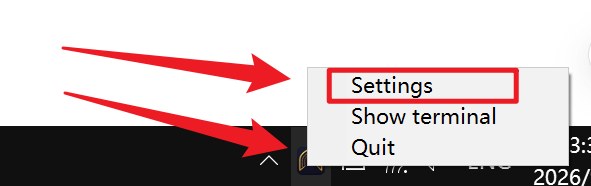
Right-click the Camovia Tray icon, then click "Settings".
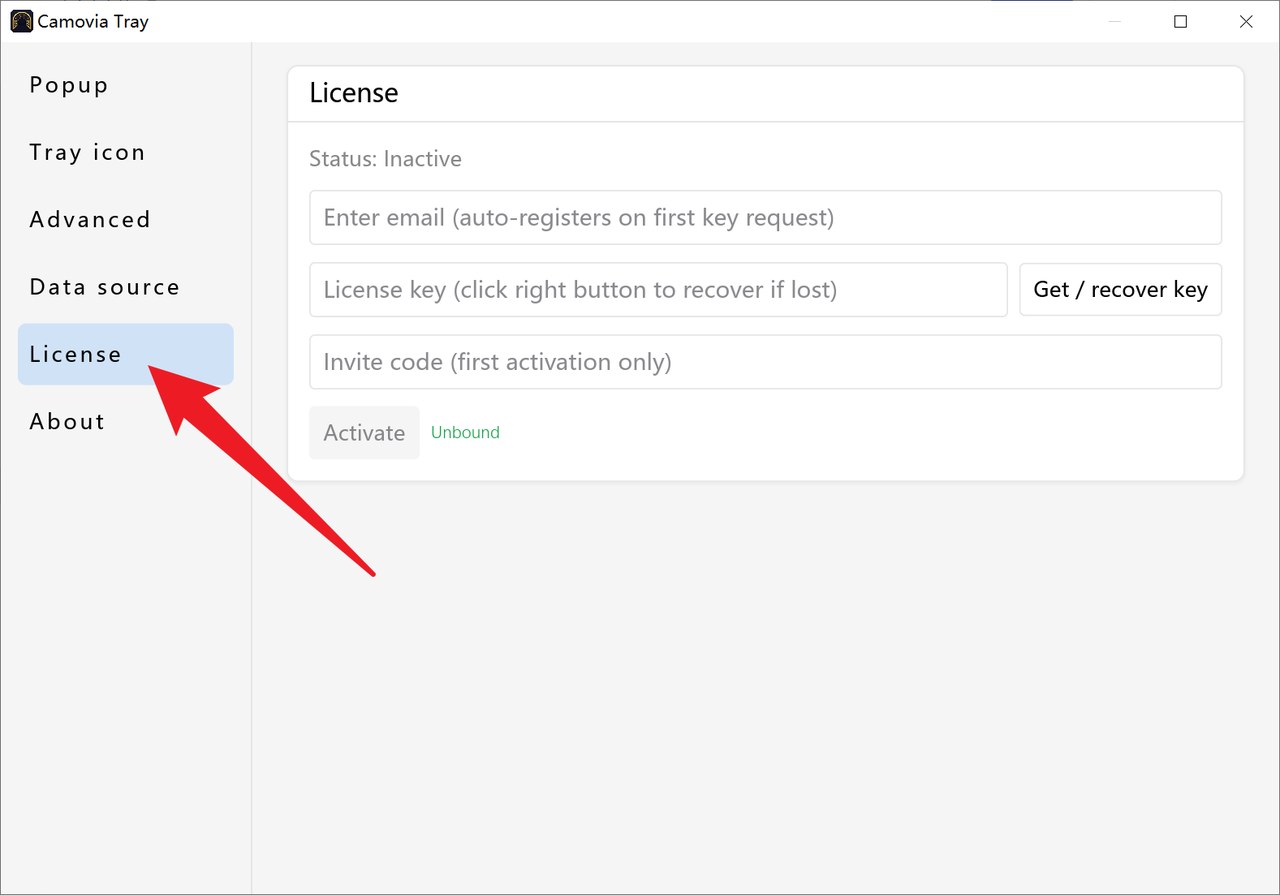
Step 3: Go to the License page and sign in
- 1 Click "License".
- 2 Enter the email you want to register with - the first sign-in registers automatically (if you already have an account, use the email you registered with before).
- 3 Click "Get / Retrieve Key" next to the license key field (if you already have a key, you can sign in with it directly).
- 4 If a friend invited you, enter their invite code in the "Invite code" field; leave it empty if you don't have one.
- 5 When everything is filled in, click "Activate".
Step 4: Sign in to your MT5/MT4 terminal
- 1 Install an MT5/MT4 terminal on your computer; you can use the terminal offered by our partner broker.
- 2 Sign in to your trading account.
- 3 Make sure the account is signed in and symbols display correctly.
Step 5: Connect the data source
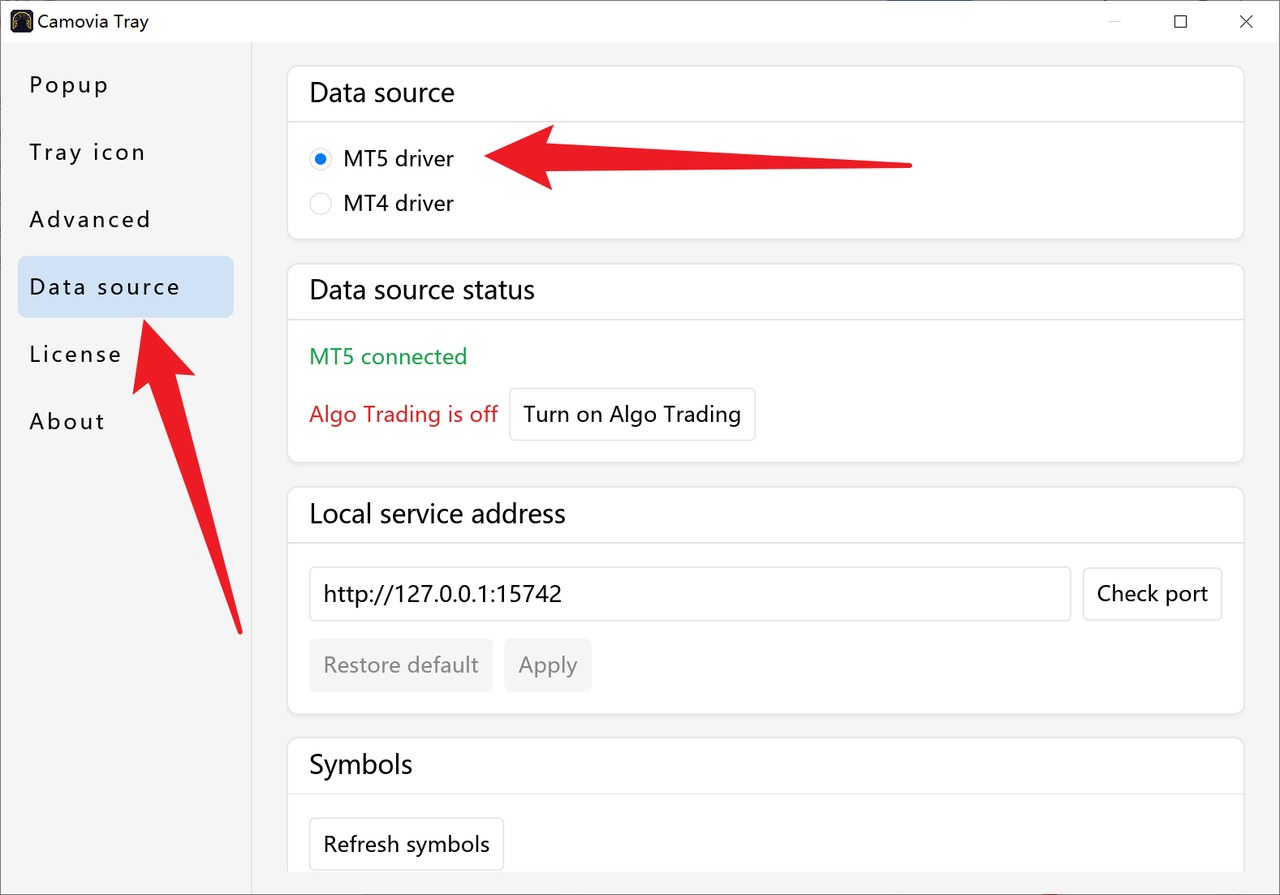
Open "Settings", go to "Data source", and choose the terminal you want to use.
- MT5: no EA needed. Camovia Tray detects your local MetaTrader 5 terminal automatically - nothing to attach.
- MT4: complete the one-time ~30-second bridge EA setup first (attach once; it auto-restores when MT4 restarts). See MT4 Bridge EA Setup for details.
Step 6: Choose symbols
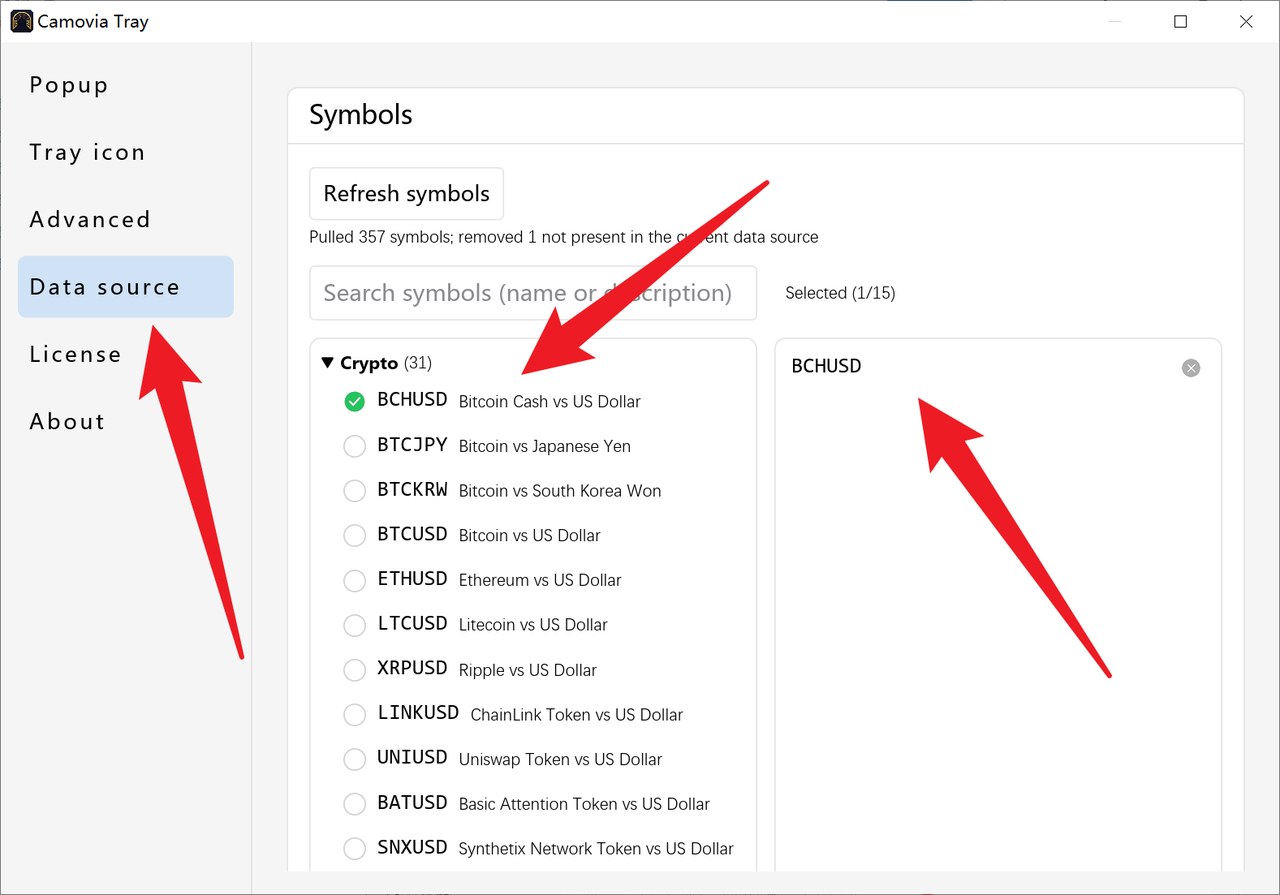
- In "Settings", go to "Data source" and scroll down.
- In "Symbol selection", pick the symbols you want to watch from the list on the left.
- Once chosen, the symbols appear in the list on the right - your setup is complete.
- To stop watching a symbol, click it in the left list to deselect it, or click the close button next to it in the right list.
Step 7: Hover the Camovia Tray icon to start
Hover your mouse over the Camovia Tray icon to view quotes and manage orders.
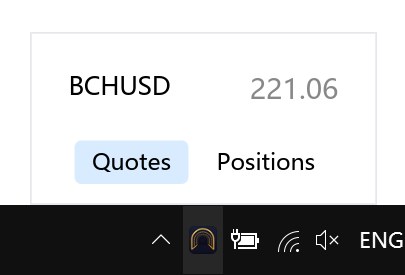
Can't find the tray icon? Windows collapses some tray icons by default - click the "^" chevron on the taskbar, or drag Camovia Tray into the always-visible area.
Related
Not installed yet?
Download Camovia Tray free — 2-day trial, subscriptions from $2.49/month.