Docs directory
Settings Explained
What every setting does, on one page.
Camovia Tray keeps its settings lean. This page explains what each one does so you can tune it to your habits.
On this page
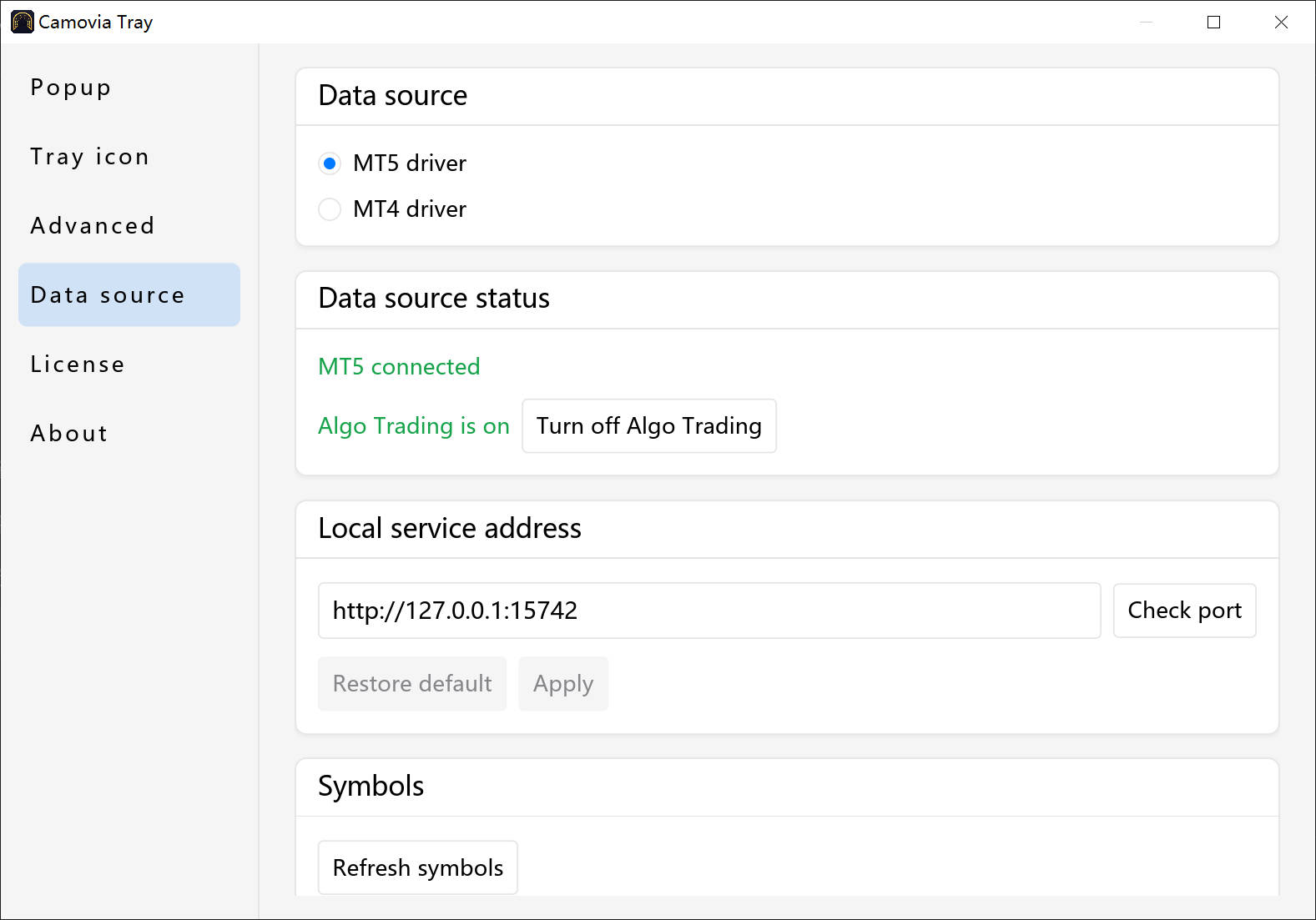
Data source
- MT5 driver: connects directly to your local MetaTrader 5 terminal - nothing to attach
- MT4 driver: choose it, then click "Copy bridge EA into MT4" for the one-time setup (see "MT4 Bridge EA Setup")
- When you switch drivers, the app restarts the bridge service and handles the corresponding terminal
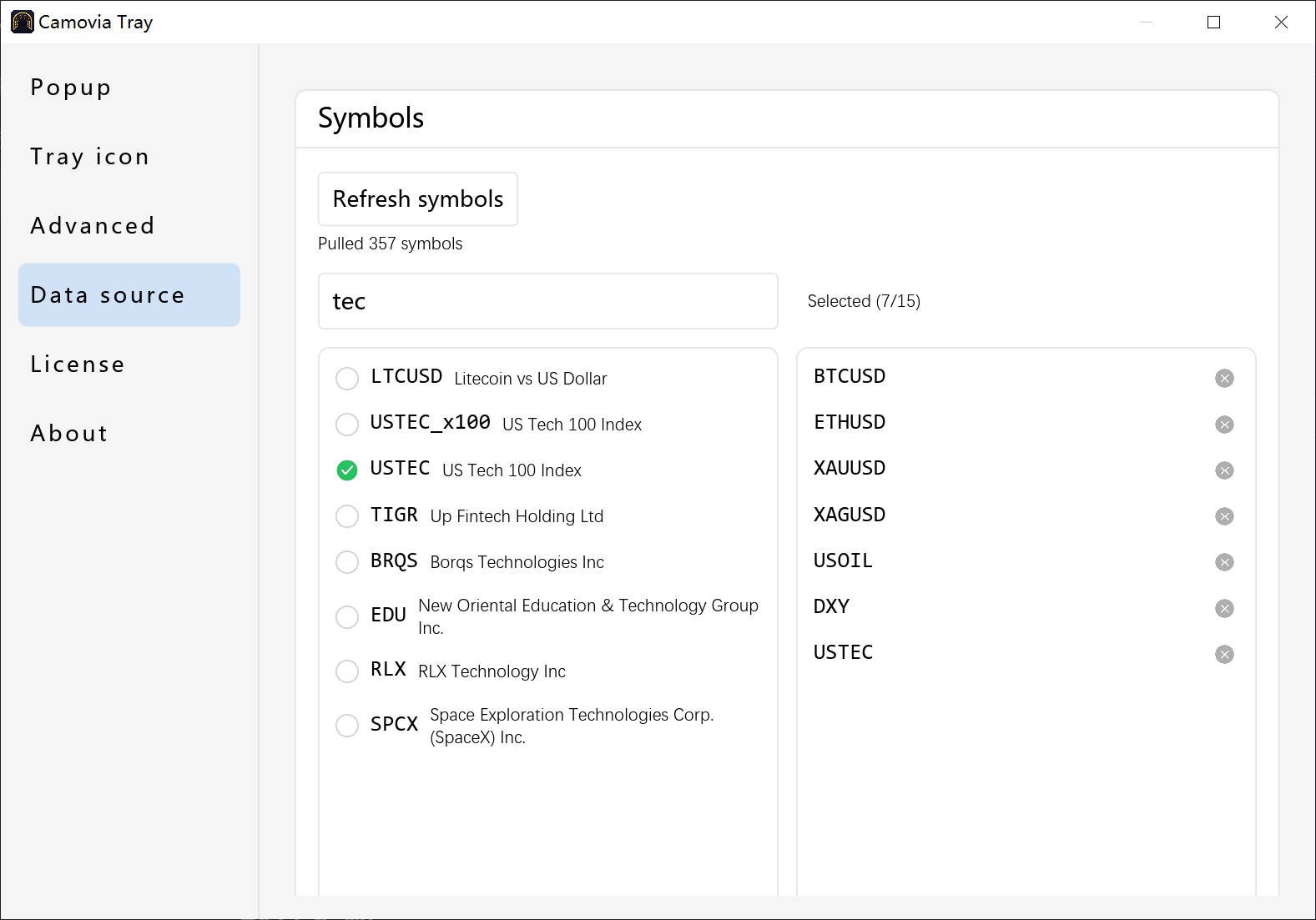
Watchlist
Check the symbols you care about and the popup updates instantly; uncheck to remove them. After switching data sources, the app automatically removes symbols that don't exist on the current terminal and tells you how many were kept.
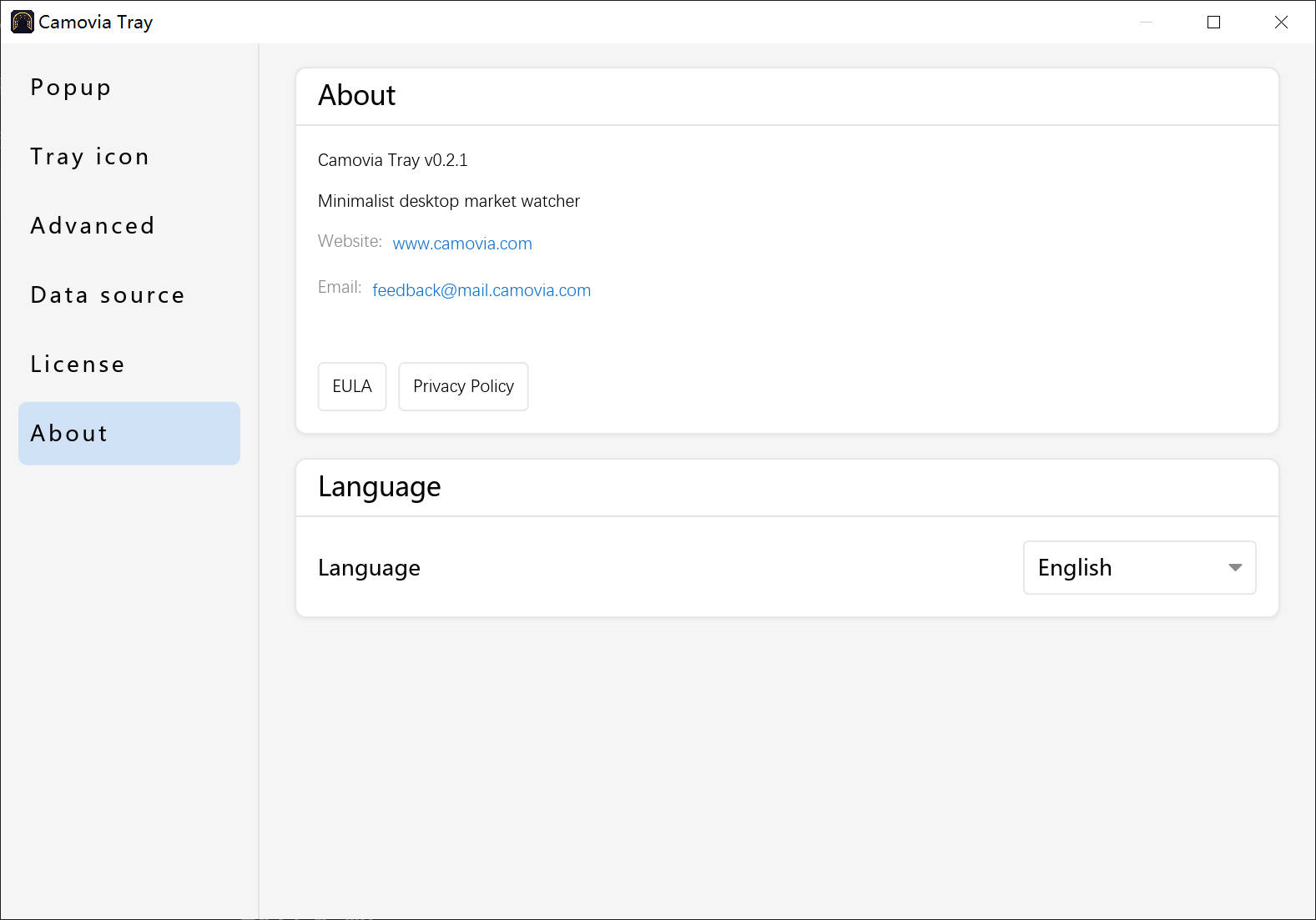
Language
Switch between English and Chinese in Settings; the app applies it instantly. This website is bilingual too.
Software updates
While online, the app checks for updates automatically: security patches and resource updates apply in the background; major program updates take effect the next time you start the app. You can also check manually in Settings.
License & account
Sign-in, activation, subscription, and redemption codes live on the License page in Settings. See "Subscription & activation" for the rules.
Related
Not installed yet?
Download Camovia Tray free — 2-day trial, subscriptions from $2.49/month.